
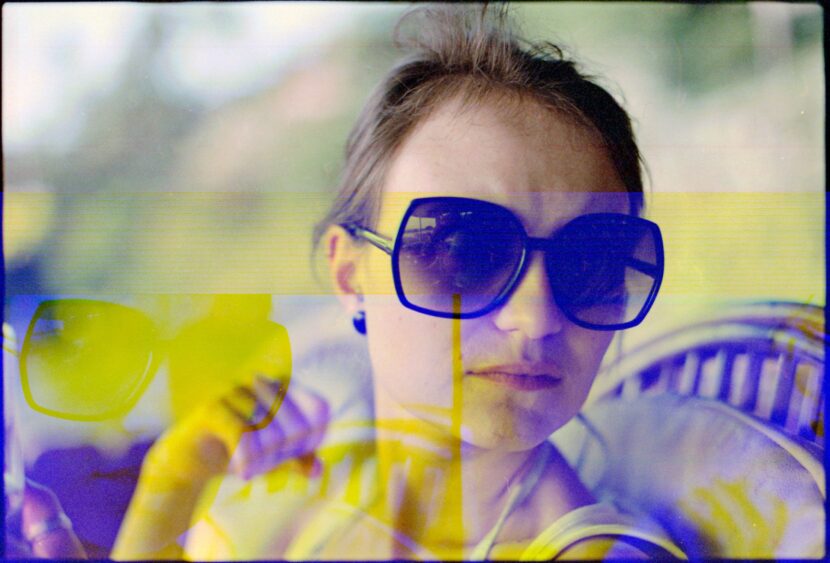
I am not the first; previous was April last year, no replies. .JPG or .PNG, same. Thumbnail looks okay but when you open it image shows for a second, then big blocks of blue march across the screen and cover it up completely, taking three passes to do it. – “User” (Apple Support Community)
There is one kind of photo problem that can make you doubt your own eyes.
You’re just viewing your images and everything appears to be fine, the thumbnail looks fine, and then you open the image only to get blue patches, random lines and borders or parts of the image are missing. Or it sometimes opens for a second, and then everything falls apart.
You shoot all the time so you’re used to this. It’s even more frustrating for a trip, family shoot or a shoot that you can’t do over and over again.
We found a discussion on the Apple Support Community, where one user described JPEG and PNG images that are only briefly visible in Preview, when they are obscured by blue blocks. The other images opened without issue and it was very strange.
It made us wonder about something all photographers do: “if the thumbnail is OK, why does the photo itself look corrupt?”
The answer isn’t always straightforward. The file could be corrupt. There might be a problem with the app that opens it, or the photo might not have exported or transferred correctly. So there’s a few things you might want to try before just writing the whole thing off.
How come the thumbnail looks well but the picture doesn’t?
A thumbnail is just a snapshot. It may be saved outside the image, or embedded within the image file, depending on how it was made.
As you look through your folder, your computer might have displayed that preview without ever actually having to fully read the original picture. Moving on to the full photo is a very different matter. If part of your image data is corrupted, the program might have trouble rendering it.
That can result in a perfectly valid thumbnail and a full-size photo with colored blocks over the image or completely missing portions of the image.
However, don’t jump to conclusions and assume the file is corrupt. Sometimes, it’s the photo viewer that’s causing the problem, especially when the photo opens in one viewer but not in another.
Other typical reasons are an interrupted transfer from an SD card, malfunctioning card reader, an error during export from your editing app, or a storage device going bad.
What should you try before fixing the picture?
First, open it somewhere else.
This is by far the most easily addressed of your options and may be worth a quick look before you even download any repair program.
If it seems wrong to you in your normal viewer, try opening a copy in an application that recognizes the format. In the case of a RAW file, verify that your software supports the camera you are using.
If the image loads normally in other locations, your original viewer may be at fault. If the same strange blocks or missing pieces show up anywhere, the file is probably corrupted.
It doesn’t prove corruption alone but it gives you a better idea of what you are facing.
Did the problem start after transferring your photos?
Reflect on the time you first suspected there was a problem. Were you simply copying a set of photos from a camera or memory card?
If that is the case, then try copying the file across again. You can also try with a different card reader or a different USB port. It’s not always the photograph that is at fault, it is the transfer. For more transfer ideas, see this guide to transferring photos to a flash drive.
Notice the number of images, whether single or multiple. If lots of photos from a card seem to behave strangely, test the card and reader before troubleshooting each image individually.
And if the card is showing signs of inconsistently disconnecting or erroring out, don’t keep testing it. Stop recording new data to it and salvage any photos that still exist.
View the first file as well, not merely its thumbnail.
Notice the file size and dimensions. If most of the photos from a shoot are a couple of megs each, and there’s one that’s really small, then you may have a hitch in copying, renaming or saving.
That’s just a start, however. Other factors can influence the size of a picture, like its format, resolution, and compression.
Also, do a search to see if you have another copy. The original may still be on the camera card, your cloud storage or the folder where you imported your photos from the memory card. If you shoot RAW + JPEG, see if the RAW is okay.
Truthfully, a good original is often easier to deal with than fixing a rough copy.
If you edited the image before it became corrupted, export it again
Particularly if you noticed the malfunction after editing in Photoshop or a similar program, this method is definitely worth a shot.
Create a copy of the original project or source image with a different filename and export it. Now open that version in an alternative viewer.
If it does work, then the previous export is likely the culprit. If you do not have the original and only have the damaged file left then you will have to look for other alternatives.
Another thing we’d steer clear of is opening and saving the same image over and over. We won’t get anywhere from doing this, and keep in mind, each time you do it, it’s going to degrade the file quality.
Is image repair software worth a try?
Suppose you’ve uploaded another viewer, reviewed the transfer and searched for backup but you are still unable to open the photo correctly. In these times, image repair software can be an option.
These software programs can be used to repair some specific types of damage to image files. The success of these programs depends on the file type and the specific problem with the file. However, if the image data has been lost entirely, there’s nothing anyone can do.
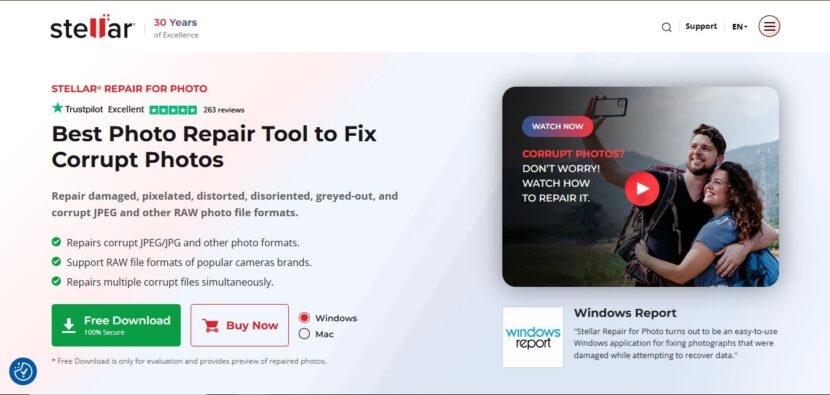
We found one service called Stellar Repair for Photo, which is one of the options available to repair supported image files like JPEGs.
If you do want to do this, work on a copy of your damaged image – never on your only original – follow the software’s advice, run the repair and check the outcome before saving it away from your other images.
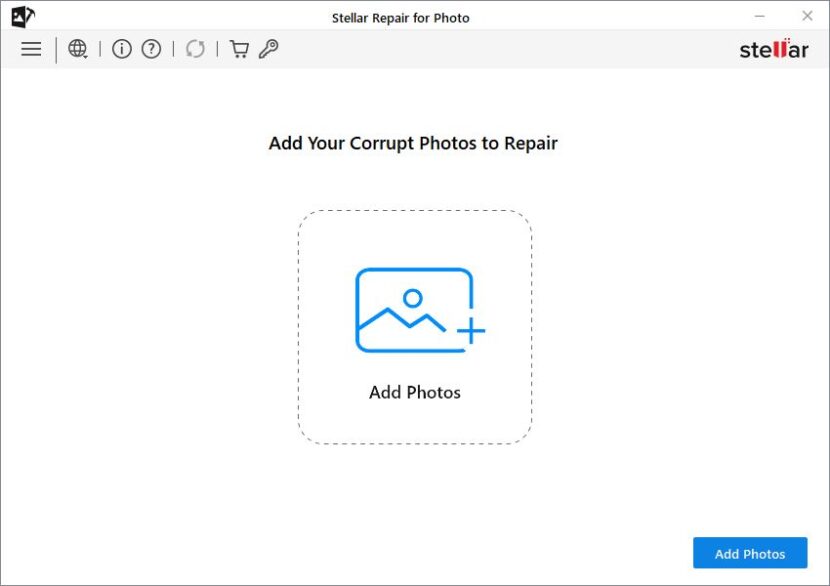
And don’t just look at the thumbnail of the finished photo. Load the photo at full size. Examine the areas that previously suffered from distortion. Is all the detail restored? Are there still odd colours or blocks? Can you actually use the image for what you need?
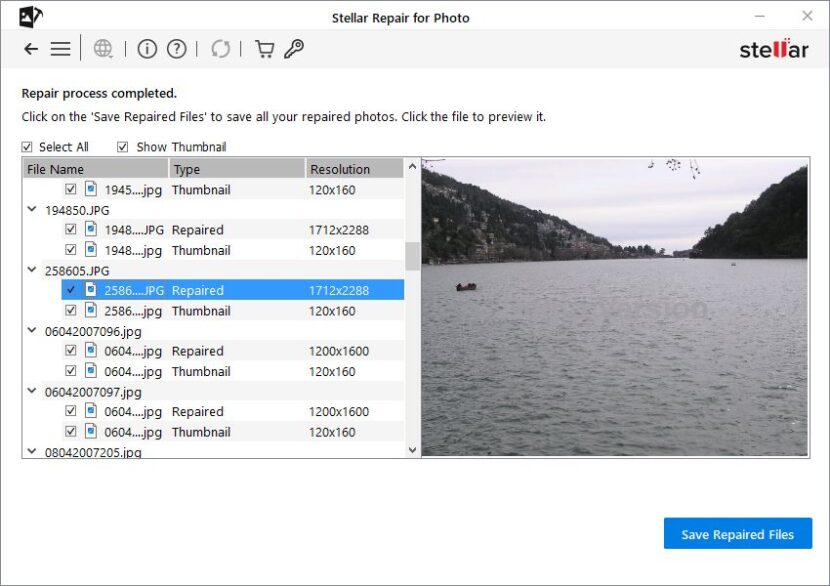
A successfully opened file can be a good way of doesn’t mean you have a complete copy of the information from the damaged file.
Is it possible to recover a photo that has been damaged?
Yes, sometimes. Though really it hinges on how much of the original image data remains.
A repair can result in a usable photo if the damage is small. If entire portions are missing or overwritten, that information is lost.
Most of us have taken a photo that looks OK until we zoom in a bit and then we notice an issue. So it’s a good idea to go through the whole image to ensure it’s OK, particularly if you intend to print the image or send to a client.
If the photo is important, save the corrupted original and try to locate a backup file before attempting any repair. You don’t want the repair process to cause a separate file corruption.
Some habits that can save you trouble down the line
You don’t have to have an overly complicated workflow to minimize your chances of losing photos. Just a few small habits can help.
– Create an additional backup for important shoots on another drive or place in the Cloud.
– Do not disconnect a card reader or camera before transfers have completed.
– Open a handful of full-sized photos following import or export of a significant number of images.
– Save your unedited photos or RAW files rather than a finished version of a photo.
– If the same SD card is giving you errors all the time, it’s time to stop using it as your sole backup.
Of course, none of this is going to make corruption impossible. But if something does happen to go wrong, a duplicate is usually worth it.
Final thoughts
A decent-looking thumbnail might look good but that doesn’t mean your photo is destroyed.
First, some simple steps: use a different viewer, verify the file was moved correctly and you’ve got the original or a backup. If the photo appears broken everywhere, you can use image repair software to try and save it.
Most important of all, don’t try to write over the photos, or take chances with a faulty storage device. There are the ones that can be fixed, others that can be recovered from backup, and some that are just too far gone.
It’s so irritating when you’re trying to load a carefully shot picture, only to find it refuses to open. Though it can be so important to you that it can be worth the checks below to try to work out what’s happened and if it can be recovered.